Until you turn it off
Use an indefinite session when you know you will return and stop it yourself. Waindow shows the active state in its menu instead of running an invisible rule.
Keep Mac awake
Start one visible Keep Awake session until you stop it, after a timer, or at a chosen time. Keep the display awake too, or let it sleep while the Mac continues working.
Free · No account · macOS 13.1+ · Apple Silicon + Intel
Actual product · No mockup
This is the current Keep Awake panel in Waindow 1.10.0. The screenshot uses the English interface; the same native panel is available across all 40 interface languages.
Download the same app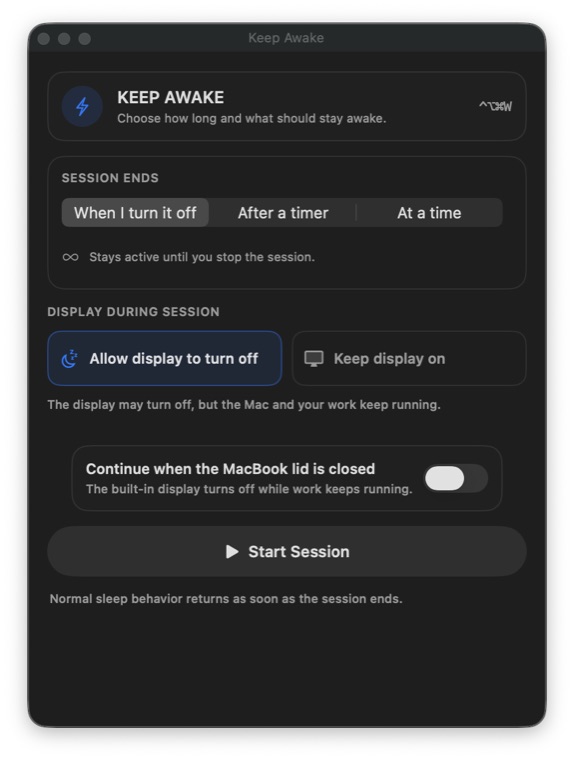
Session ends
There are no app, process, network, battery, or location triggers. Waindow starts only the session you explicitly request.
Use an indefinite session when you know you will return and stop it yourself. Waindow shows the active state in its menu instead of running an invisible rule.
Enter 1 to 10,080 minutes—up to seven days. macOS releases the idle-sleep assertion at the selected timeout even if the panel is no longer open. Closed-lid protection remains guarded by Waindow and ends with the session.
Pick the time the session should end. When it ends or you stop it, Waindow releases its assertion and normal macOS idle-sleep behavior returns.
Display during session
Prevent idle system sleep while allowing the display to follow its normal idle-sleep setting. Use this for a long build, download, export, or local automation that does not need a lit screen.
Prevent idle display sleep as well as idle system sleep. Use it when the screen must remain visible for a presentation, dashboard, reading session, or demonstration. Explicitly choosing Sleep still sleeps the Mac, and closing a MacBook lid requires the separate supported option below.
MacBook lid closed
On a supported MacBook running the direct Waindow build, the panel can request continued work after the lid closes while the built-in display turns off. You must start it manually in this panel. If macOS rejects activation, Waindow reports the failure and returns to normal sleep behavior.
Honest fit
One explicit session